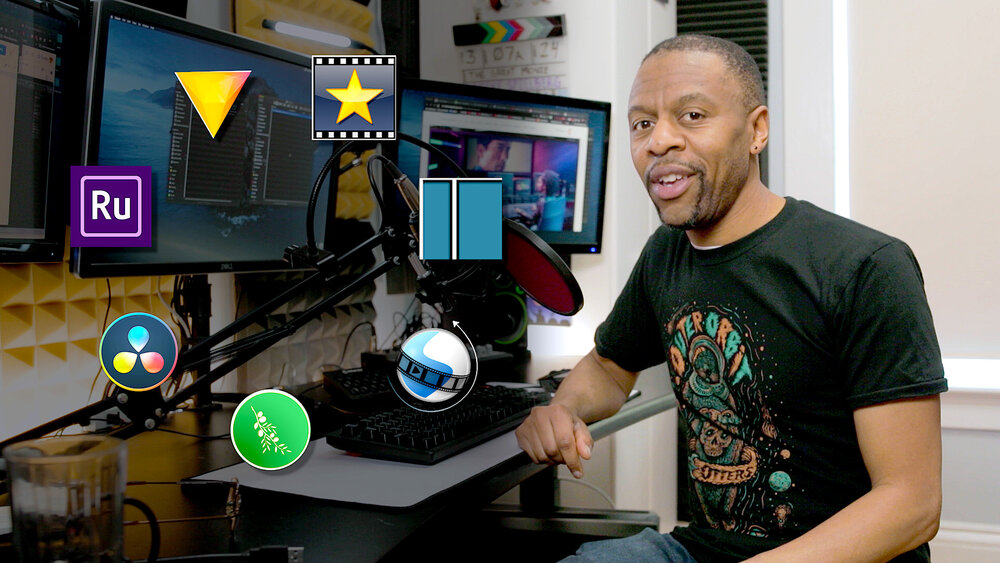
Paid video editing software is often looked at as the industry benchmark, but compared to 20 years ago, the number of free tools available now is enormous. If you don’t know whether you should pay for Adobe’s software, I’ll help you decide today.
DaVinci Resolve
DaVinci Resolve is by far my favorite video editing tool, and I find it absurd how many advanced features you get without upgrading to a paid subscription. I’m very process-oriented, and one of the ways that Davinci Resolve helps me in this regard is by letting you create nodes. This is one of the biggest reasons I initially switched from Premiere Pro.
Another big benefit of Davinci Resolve is that you can use the software on your iPad. If you have one of the newer iPad Pro models, you can edit in 4K; if not, you can still edit in 1080p without any problems.
DaVinci Resolve also has better color editing tools than Premiere Pro, but there’s one problem: learning how to use them is a lot more difficult than color grading in Premiere Pro.
I use Fujifilm cameras and I’ve found that editing LOG files for my devices in Premiere Pro is easier than in DaVinci Resolve. I had to import several LUTs to help with the latter (Premiere Rush isn’t the best software for this type of editing as it has very limited features). Speaking of which, it’s a good idea to learn about LUTS and how to use them for color grading before jumping into any video editing tool.
Another thing I don’t like too much about DaVinci Resolve is that importing and exporting files to your iPad is sometimes unnecessarily complicated.
CapCut
CapCut is my favorite video editing software for short-form video editing, although I’ve previously created Instagram Reels in Premiere Pro. CapCut has even more flexibility than DaVinci Resolve as you can download it to your smartphone, not just your tablet.
CapCut was developed by the same company that owns TikTok, and it’s no surprise that it’s perfectly designed for editing short-form content. You can edit both videos and photos, which is ideal if you want to keep everything in one place. Premiere Pro isn’t the best choice for this; you should download Photoshop or Lightroom if you want to edit photos.
You can export up to 4K and 60 frames per second on CapCut, even if you don’t have a new iPad. However, you should make sure your files will work fine in these formats; if you’re just posting to your personal social media accounts, 1080p is plenty.
CapCut also has a number of sliders for editing hue, temperature, saturation, hue, contrast, and more. I think these are more comprehensive than the filters you get in Premiere Rush – the same applies to the number of filters available. However, you’ll need to upgrade to CapCut Pro for the color wheel and color correction.
Both CapCut and Premiere Rush have music libraries to choose from; I think they’re about the same in terms of quality.
Download: CapCut for iOS | Android | Windows | macOS (Free, in-app purchases available)
iMovie
iMovie is limited compared to other video editing tools because it’s only available on Apple devices. However, it’s completely free to use and not too difficult to learn. You can quickly batch together clips, which makes it ideal if you just want to make a short movie without doing dramatic editing.
When using iMovie, you can choose whether to create a full movie or just a storyboard. Plus, you can import both videos and photos. The app has a fair selection of filters, but I personally prefer Premiere Rush’s options.
Many of iMovie’s other editing tools are very similar to those in Premiere Rush. For example, you can adjust the volume in each clip and adjust the speed of your content when splitting where necessary.
iMovie also allows you to add text to your videos, with several styles available. In addition to creating videos, it’s possible to create video thumbnails in iMovie.
Should you get Adobe’s video editing software
Although the three options I’ve discussed are viable alternatives to Adobe Premiere Pro and Premiere Rush, I think some users would benefit more from using Adobe. Below, I’ll explain when you should get Adobe’s video editing software and when it might be wise to look elsewhere.
My case for Adobe
If you’re already in the Adobe ecosystem, you may find Premiere Pro or Premiere Rush very easy to use – especially if you already have a Creative Cloud All Apps subscription. The interfaces of both apps are easy to navigate if you’ve used any other Adobe tools before.
You should also use Premiere Rush to make basic adjustments.